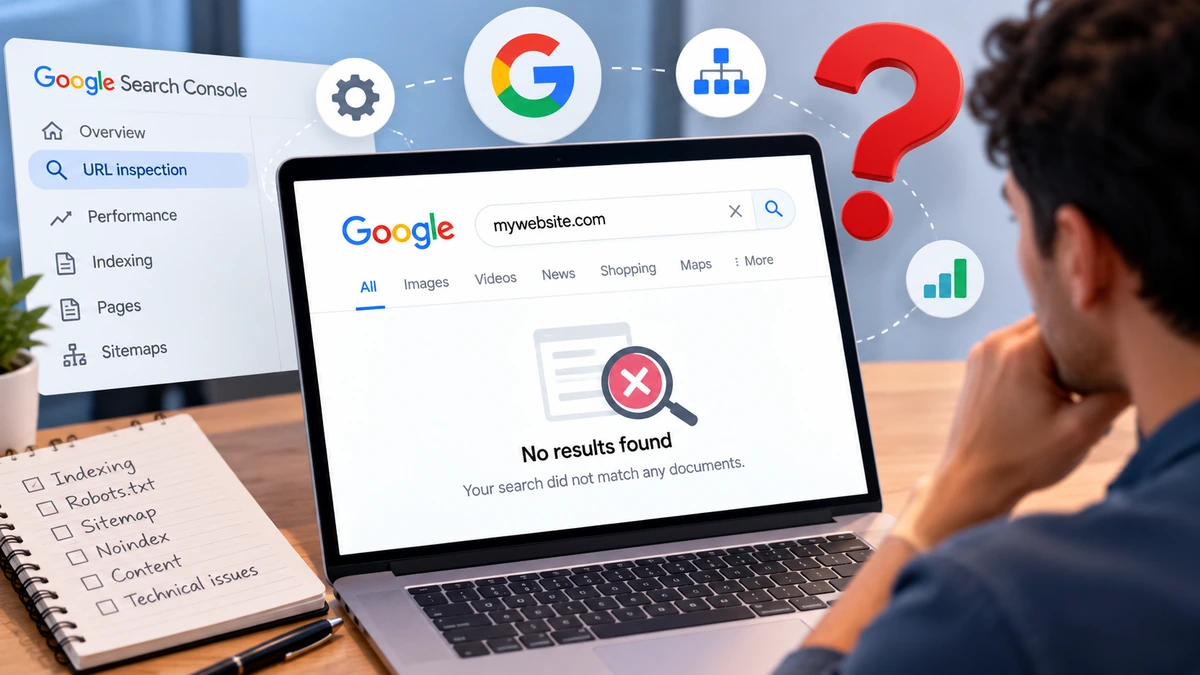
Why Is My Website Not Showing Up on Google? 10 Reasons and How to Fix Them
Find out why Google isn't indexing your website and follow practical steps to fix common crawling, indexing, and technical SEO problems.
Published a website or a new page, but cannot find it on Google? This is a common problem for website owners, especially when launching a new site, publishing new content, or making technical changes.
A website may not appear in Google Search because Google has not discovered it yet, cannot crawl it, has not indexed it, or considers other pages more relevant to a particular search. These situations require different solutions, so identifying the actual cause is the first step.
In this guide, you will learn 10 common reasons why your website is not showing up on Google and how to troubleshoot each one using practical steps and free tools.
1. Your Website Is Too New
Google does not discover and index every new website immediately. Its crawlers need to find your pages, access them, and process their content before they can appear in search results.
If you launched your website recently, the absence of your pages from Google does not necessarily indicate a technical problem.
How to fix it:
- Verify your website in Google Search Console.
- Submit your XML sitemap if you have one.
- Make sure important pages are accessible through internal links.
- Use the URL Inspection tool to check whether Google has discovered a specific page.
- Give Google time to crawl and process your content.
Requesting indexing can help Google discover a page, but it does not guarantee that the page will be indexed or appear immediately.
2. Your Pages Have Not Been Indexed
A page can exist on your website and be accessible to visitors without being included in Google's index.
To check its status, open Google Search Console and enter the complete page URL into the URL Inspection tool.
Review the indexing information to determine whether Google has indexed the page or encountered a problem.
How to fix it:
- Open Google Search Console.
- Select the correct website property.
- Enter the URL of the page you want to check.
- Review the indexing status and any reported issues.
- If the page is eligible for indexing and the underlying problem has been resolved, select Request Indexing when available.
You can also use the Page Indexing report to identify patterns affecting multiple URLs.
Official resource: Google Search Console URL Inspection tool.
3. Your Robots.txt File Is Blocking Google
The robots.txt file tells search engine crawlers which parts of a website they are allowed to crawl.
An incorrectly configured rule can prevent Googlebot from accessing important pages or resources. This may happen after a website migration, a redesign, or changes to a WordPress SEO plugin.
For example, the following rule blocks crawling across the entire website:
User-agent: *
Disallow: /
How to fix it:
- Visit
https://yourdomain.com/robots.txtand review its rules. - Check whether important pages or directories are unintentionally blocked.
- Review the robots.txt testing and indexing information available through Google's tools and documentation.
- Remove or correct the blocking rule if it is not intentional.
Be careful when editing this file. Blocking crawling and preventing indexing are not the same thing. Google recommends using a noindex directive when you want to prevent a page from appearing in search results.
Official resource: Google's robots.txt documentation.
4. Your Pages Contain a Noindex Directive
A noindex directive tells search engines not to include a page in their search results.
It can be useful for private or unimportant pages, but an accidental directive can keep an important article, category, or landing page out of Google.
A page may contain this HTML meta tag:
<meta name="robots" content="noindex">
A similar instruction can also be delivered through an HTTP response header.
How to fix it:
- Inspect the affected URL in Google Search Console.
- Check the page's HTML source and HTTP headers.
- Look for an unintended
noindexdirective. - If the page should appear in Google, remove the directive.
- Make sure Googlebot can crawl the page so it can detect the change.
If you use WordPress, review your SEO plugin settings and the site's search engine visibility option.
Do not remove noindex from pages that are intentionally excluded from search results.
5. Your Website Has Technical Errors
Google needs to access a working page before it can evaluate its content.
Server errors, broken redirects, incorrect HTTP status codes, and pages that return misleading error messages can prevent successful indexing.
For example, a page returning a 500 server error may be temporarily inaccessible. A page that displays a missing-page message while returning a 200 OK status may also be treated as a soft 404.
How to fix it:
- Check the URL Inspection report for crawling and indexing errors.
- Confirm that important pages return the correct HTTP status code.
- Fix server errors and broken internal links.
- Replace unnecessary redirect chains with direct redirects.
- Return a proper
404or410status when content has genuinely been removed and has no suitable replacement. - Check your hosting provider's server logs if errors persist.
For pages intended to be indexed, Google generally requires a successful HTTP response and indexable content.
6. Your Content Is Thin, Duplicated, or Not Useful Enough
Getting crawled does not guarantee that a page will be indexed.
Google evaluates page content and may decide not to index a page if it offers little additional value, duplicates another URL, or does not provide useful information.
This can affect automatically generated pages, nearly identical articles, empty category pages, and content that repeats information available elsewhere without adding meaningful details.
How to fix it:
- Answer the reader's main question directly.
- Add original explanations, examples, research, or practical steps.
- Remove unnecessary repetition and generic filler.
- Consolidate genuinely overlapping pages when appropriate.
- Check whether several URLs provide substantially the same content.
- Make sure each important page serves a clear purpose.
The goal is not simply to make an article longer. It is to give readers information that is accurate, relevant, and useful.
7. Your Internal Linking Is Weak
Google discovers many URLs by following links from pages it already knows.
If an important article has no internal links pointing to it, Google may have difficulty discovering it, and visitors may struggle to find it as well.
This is especially common on large websites where new articles are published but rarely linked from existing content.
How to fix it:
- Link to new articles from relevant, established pages.
- Add contextual links from related articles.
- Use descriptive anchor text that explains what the destination page covers.
- Make important pages accessible through your site's navigation or category structure when appropriate.
- Avoid creating unnecessary pages that have no useful links pointing to them.
Internal links should help readers navigate naturally rather than exist solely to manipulate rankings.
8. Your XML Sitemap Is Missing or Incorrect
An XML sitemap helps Google discover important URLs on your website. It is particularly useful when launching a new site, publishing many pages, or reorganizing a website.
However, submitting a sitemap does not guarantee that every listed URL will be crawled or indexed.
How to fix it:
- Locate your sitemap, often at
https://yourdomain.com/sitemap.xmlor at a sitemap index URL. - Open Google Search Console.
- Select Sitemaps.
- Submit the correct sitemap URL.
- Check the processing status and investigate any reported errors.
- Make sure the sitemap contains the correct, preferred URLs rather than redirects, broken pages, or URLs you do not want indexed.
If you use WordPress, your SEO plugin may generate and update the sitemap automatically.
Official resource: Build and submit a sitemap.
9. Google Is Indexing a Different Version of Your Page
Websites sometimes make the same content accessible through multiple URLs, such as HTTP and HTTPS versions, www and non-www versions, or URLs with different tracking parameters.
Google may select one URL as the canonical version and treat the others as duplicates.
As a result, searching for one specific URL may not show that exact address, even though Google has indexed the preferred version of the content.
How to fix it:
- Inspect the URL in Google Search Console.
- Review the user-declared canonical URL and Google's selected canonical URL.
- Check whether the canonical tag points to the correct page.
- Use consistent internal links to the preferred URL.
- Configure redirects appropriately when consolidating duplicate versions.
- Keep your sitemap consistent with the URLs you want Google to index.
Do not force every page to use the homepage as its canonical URL. Each page should generally identify its own preferred version unless a genuine duplicate relationship exists.
10. Your Website Has a Security Issue or Manual Action
In some cases, a website may be affected by a manual action, a security problem, or a previous request to remove content from Google.
These issues can affect how pages appear in search results, and some may prevent specific content from being shown.
How to fix it:
- Open the Manual Actions report in Google Search Console.
- Check the Security Issues report.
- Review any warnings or messages associated with your website.
- Follow Google's instructions to remove harmful content, fix security vulnerabilities, or address the reported policy violation.
- If a manual action was issued and you have corrected the problem, submit a reconsideration request when appropriate.
Not every indexing problem is caused by a penalty. Check the actual reports before assuming that Google has penalized your website.
How to Find Out Why Your Website Is Missing From Google
Rather than changing several settings at once, use this simple troubleshooting process to identify the most likely cause.
Step 1: Check whether the page is indexed.
Open Google Search Console and inspect the complete URL. This helps you determine whether Google knows about the page and whether it has been indexed.
Step 2: Review the reported reason.
Look for messages related to crawling, indexing, redirects, canonical URLs, or noindex directives.
Step 3: Test the live page.
Use the URL Inspection tool's live test to check whether Google can access the current version of the page. Remember that a successful live test does not guarantee indexing.
Step 4: Fix the underlying issue.
Correct the technical problem, improve the content, or strengthen internal links, depending on what the evidence shows.
Step 5: Request indexing if appropriate.
After making the necessary changes, request indexing for an individual URL or submit an updated sitemap for multiple pages.
Step 6: Monitor the results.
Check Search Console again over the following days and weeks. Crawling and indexing can take time, and Google does not guarantee that every page will be indexed.
Frequently Asked Questions
Why is my website not showing up on Google even when I search for its name?
Your website may be new, not indexed, technically inaccessible, or not yet considered relevant enough for the search. Check your homepage in Google Search Console first, then review any reported issues.
How long does Google take to index a new website?
There is no fixed timeline. Discovery and indexing can take days or longer, depending on the website, its technical accessibility, and Google's systems. Requesting indexing does not guarantee a specific timeframe.
Does submitting a sitemap guarantee indexing?
No. A sitemap helps Google discover URLs, but Google decides which pages to crawl and index.
Can a website be indexed but still not rank on Google?
Yes. Indexing and ranking are different processes. An indexed page may appear far down the results or fail to appear for a particular search because other pages are considered more relevant.
Should I request indexing every time I publish an article?
You can request indexing for important new or updated URLs when appropriate, but repeatedly submitting the same unchanged URL will not make Google crawl it faster. Keep your sitemap updated and make sure new pages are easy to discover through internal links.
Final Thoughts
If your website is not showing up on Google, start by identifying whether the problem involves discovery, crawling, indexing, or ranking. Each stage requires a different solution, and making changes without diagnosing the cause can waste time or create additional problems.
Google Search Console is the best starting point for most website owners because it provides URL-level inspection, indexing reports, and tools for investigating technical issues.
Focus on making your website accessible, ensuring important pages can be indexed, publishing useful content, and creating clear internal links. These steps improve your site's eligibility for Google Search without promising indexing or rankings that no website owner can guarantee.
Sources
- Google Search Essentials
- Google Search Crawling and Indexing FAQ
- URL Inspection Tool – Google Search Console Help
- Introduction to robots.txt – Google Search Central
- Build and Submit a Sitemap – Google Search Central